 ilovethesmiths
I LOVE THE SMITHS AI · TOOL COMPARISON
Where Can I Make an I Love The Smiths AI Video? 4 Generators Compared (2026)
Want to put yourself and a friend into the “I Love The Smiths” elevator scene from (500) Days of Summer? Compare four online generators, their advertised costs and workflows, then follow a photo-to-video guide.
What changed — Prepared the comparison, checked the four official generator pages, and added site workflow screenshots, a demonstration video and related guides.
The Short Answer: Where Can I Make an I Love The Smiths AI Video?
You can make an I Love The Smiths AI video with Reeldo AI, RapVideo AI, Starrd, or Jump on the Trend. Reeldo uses a two-photo reference workflow; RapVideo lists multiple resolutions; Starrd offers a two-photo template with optional Director’s Notes; Jump on the Trend offers a free image preview before a paid video.
For a partner or friend, choose a tool that supports two separate photos. For a solo version, check the available role options. A free still-image preview is not a free finished video.
This comparison covers published features and prices checked on November 10, 2026. No independent side-by-side generation tests were performed, so these are workflow options, not a ranking of video quality.
Article Updates
- Prepared the four-tool comparison, creation steps and FAQ.
- Added two local interface screenshots, the homepage demonstration video and links to site guides, pricing, support and policies.
- Verified advertised specifications and pricing against official pages; left Starrd resolution and aspect ratio unconfirmed.
Publisher disclosure: This guide is published by ilovethesmiths.pro, which also operates an I Love The Smiths video generator. The four-tool comparison below covers external providers. We have not added our own tool to a quality ranking or run a controlled cross-tool generation test.
What Is the I Love The Smiths AI Trend?
The trend recreates the elevator encounter from the 2009 romantic comedy (500) Days of Summer. Tom is listening through headphones when Summer recognizes the music and tells him she loves The Smiths.
The song in the film scene is “There Is a Light That Never Goes Out.” The AI version uses uploaded photos to personalize the people and setting, without requiring you to film in an elevator. See the provider’s scene background and original-clip references.
Couples and friends have also recreated the conversation by filming it themselves. Dedicated AI tools were advertising versions by the November 10, 2026 review date; that does not establish when the first AI recreation appeared.
- Make a shared scene with your partner.
- Create a video with a friend who shares your music tastes.
- Personalize a familiar movie moment for a short social post.
Use photos of people who have agreed to participate. Recognition of the scene does not guarantee that a generator will reproduce its dialogue, music or acting accurately.
I Love The Smiths AI Video Generators Compared
These are advertised specifications, not measured output-quality scores. Each generator name links to the official page used for this comparison.
| Generator | Photos | Video length | Advertised output | Advertised price |
|---|---|---|---|---|
| Reeldo AI | 2 | 15 seconds | 480p / 720p · 16:9 | 125 / 282 credits |
| RapVideo AI | 2 | 14 seconds | 480p / 720p / 1080p · 16:9 | From 7 credits; smallest pack $9.99 / 10 credits |
| Starrd | 2 | 15 seconds | Resolution and aspect ratio not confirmed | 150 credits; packs from $4.99 / 100 credits |
| Jump on the Trend | 1–2 people | About 14–15 seconds | Video with sound; check export specifications | $6.99 / 100 credits for video; free image preview |
Credits are not interchangeable across services. Compare the pack you must purchase, the charge for your chosen output and any recurring-plan requirement. A per-render credit figure is not necessarily the minimum cash payment.
1. Reeldo AI — A Reference-Based Elevator Workflow
Official Reeldo AI generator page
Reeldo provides a dedicated generator using a hosted elevator reference to guide the scene. Its page lists Wan 3.0, two photo inputs and sound. Photo 1 is the headphone-wearing listener; Photo 2 is the speaker.
Draft is listed at 125 credits for 480p; Standard at 282 credits for 720p. Both are 15-second landscape videos. Select the quality after uploading your two photos, then review the credit charge before generating.
Who should consider it? Consider it if you want a fixed reference workflow without writing the scene prompt yourself.
Check before paying: Dollar estimates on the page use its best annual subscription rate. Your purchase cost can be higher with monthly plans or one-time packs; credits alone do not establish the cash needed to start.
2. RapVideo AI — Multiple Resolution Options
Official RapVideo AI generator page
RapVideo lists a two-photo Wan 3.0 effect with sound and landscape output. The first photo takes the headphones role; the second takes the speaking role. The page offers 480p, 720p and 1080p.
The default 480p video costs 7 credits. Its smallest advertised pack is $9.99 for 10 credits, so a new buyer needs more than the per-video credit amount. The provider estimates 5–15 minutes and says failed generations return credits.
Who should consider it? Consider it if choosing an output resolution matters to you; check the selected quality’s charge before starting.
Check before paying: Landscape output may need reframing for vertical posts. At the time checked, the provider said it had not rendered this particular scene itself; its displayed reference is not proof of your likely result.
3. Starrd — A Two-Photo Template with Director’s Notes
Official Starrd generator page
Starrd’s template asks for two photos and lists a 15-second video made with Seedance 2.0. The template supplies the instructions; optional Director’s Notes let you request changes to the mood or details.
Open the template, upload one clear photo per participant, add notes if needed, and review the charge before creating. The page lists 150 credits, with packs starting at $4.99 for 100 credits. One smallest pack is therefore insufficient on its own.
Who should consider it? Consider it for a template-led workflow with optional written direction.
Check before paying: The checked template page does not specify resolution or aspect ratio. Confirm export details and the total credit-pack purchase in the generator and checkout before paying.
4. Jump on the Trend — A Free Still Preview
Official Jump on the Trend generator page
Jump on the Trend advertises a free image preview, followed by a paid video. Its page offers solo role replacement and two-person versions, with appearance and scene-change controls.
The published full-video price is 100 credits ($6.99). The page uses both 14 seconds and 14.5 seconds, so treat the length as approximate and check the selection before paying.
Who should consider it? Consider it if you want to inspect a still of yourself in the setting before deciding whether to buy the animation.
Check before paying: A still cannot demonstrate motion, dialogue synchronization or face consistency across shots. The preview is free; that does not make the complete downloadable video free.
See This Site’s Photo-to-Video Workflow
The screenshots below show this publisher’s local English interface, captured November 10, 2026. They illustrate the upload and settings controls, not the interfaces or generated results of the four external services above.
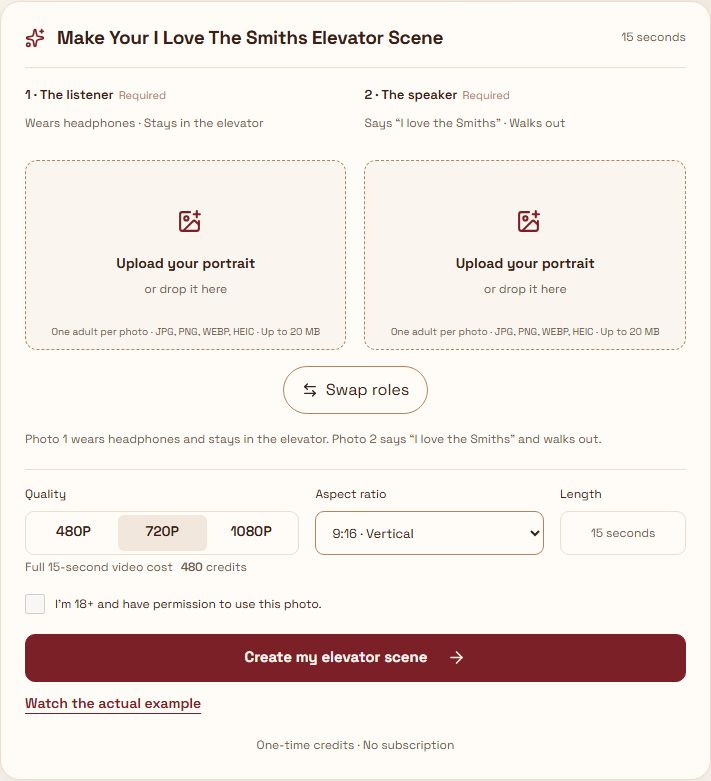

After generating, review your own result in My videos (sign-in required). For photo handling, see our privacy policy and acceptable-use rules.
How to Make an I Love The Smiths AI Video: Step by Step
For this site’s complete upload and confirmation instructions, follow our How to Make an I Love The Smiths AI Video tutorial.
Most dedicated generators follow a similar sequence. If you are using this site, open the generator and check its current pricing and upload instructions; other providers have their own controls and policies.
Step 1: Choose an AI video generator
Start with the options above. For a two-person result, confirm that the selected effect accepts two separate portraits. For a solo version, check which character you can replace. Compare the amount you must buy, not just the credits charged for one render.
Step 2: Prepare your photos
Use a clear, well-lit, front-facing photograph of each consenting adult. Avoid sunglasses, obscured faces, heavy filters and group shots. A shoulders-up or upper-body photograph can help the model read the person’s appearance. Get permission before uploading someone else’s photo.
- One person per image.
- A separate photograph for each role.
- Visible eyes and an unobstructed face.
- Use images you have permission to upload.
Step 3: Assign the characters
In the two-photo workflows described above, Photo 1 commonly represents the headphone-wearing listener and Photo 2 the person saying “I love the Smiths.” Always follow the upload labels: another template may assign roles differently.
Step 4: Generate the AI video
Select the resolution and format where available. Check the preview, total charge and failure policy before confirming. Processing time varies with the service, model and demand; an advertised estimate is not a delivery guarantee.
- Confirm both photos are in the intended slots.
- Review any credit purchase separately from the generation charge.
- Save the job reference and wait for its status before retrying.
Step 5: Review your video
Watch the complete result with sound before sharing. A sharper export does not necessarily mean better identity preservation or motion. If something is wrong, read the provider’s retry and refund terms before paying again.
- Do both faces resemble the input photos?
- Are the headphones and hands moving naturally?
- Does speech align reasonably with the mouth movements?
- Do the characters stay consistent between shots?
- Is the audio present and suitable for your intended use?
Step 6: Share on TikTok, Instagram or YouTube Shorts
Download the finished video. If it is landscape, reframe it in an editor for a vertical post without cropping away either person. Check the platform’s current AI-labeling and audio rules. Use music from a platform’s licensed library only where your account, region and intended use permit it; a video purchase does not itself grant soundtrack rights.
Can I Make an I Love The Smiths AI Video for Free?
For this site, check the current credit packs and refund policy; another provider’s preview offer does not apply to I Love the Smiths.
A free scene preview may be available, but a complete downloadable video can require payment. Jump on the Trend distinguishes its free still preview from its paid animation. The other three tools list credit charges.
Before treating a “free” offer as a finished-video offer, check:
- Whether it includes a downloadable video or only an image preview.
- Whether the output has a watermark or limited resolution.
- Whether registration is required.
- Whether trial credits expire.
- Whether payment is required before downloading.
A still can help you judge the composition, but it cannot establish the quality of motion, dialogue synchronization or identity consistency.
Which I Love The Smiths AI Generator Should You Choose?
There is no tested overall winner in this comparison. Start with the workflow that matches your inputs and intended format:
- Reeldo: a fixed two-photo reference workflow.
- RapVideo: a choice of advertised resolutions.
- Starrd: a template with optional Director’s Notes.
- Jump on the Trend: a still preview before the paid video.
For vertical posts, verify the export format before buying. For a strict budget, compare the minimum purchase and retry policy. To judge likeness and motion, look for clearly labeled actual output; a reference clip or a single successful example is not a guarantee for your photos.
Can You Create the I Love The Smiths Trend Without AI?
Yes. Two consenting participants, a phone camera, headphones and a suitable location are enough to stage your own interpretation. One person listens while the other notices the music and begins the conversation.
Film your own performance, edit it in a video editor and use audio you are permitted to publish. This gives you direct control over the acting and avoids unpredictable AI faces and movements. An AI template may be more convenient if you want an elevator setting without arranging a shoot.
Frequently Asked Questions
What is the I Love The Smiths AI video?
It is an AI recreation of the elevator encounter from (500) Days of Summer. Users upload portraits to appear in a short scene, usually featuring a headphone-wearing listener and a second person who recognizes the music.
Where can I make an I Love The Smiths AI video online?
Reeldo AI, RapVideo AI, Starrd and Jump on the Trend have dedicated tools or templates. Compare their photo requirements, advertised output, purchase minimum and preview policy before choosing.
Is there a free I Love The Smiths AI video generator?
Jump on the Trend advertises a free still-image preview, with payment for the full video. This comparison does not establish a permanently free, complete downloadable video from any of the four tools.
How many photos do I need?
The first three tools listed here ask for two photos. Jump on the Trend also advertises solo options. Check the selected effect’s upload labels rather than assuming that every tool supports a single selfie.
Can I make a video with my boyfriend, girlfriend or best friend?
A two-photo workflow can place two participants in the scene. They do not need to be a romantic couple. Use photographs of consenting adults and obtain each person’s permission before uploading.
What movie is the I Love The Smiths trend from?
The scene comes from (500) Days of Summer (2009), starring Joseph Gordon-Levitt as Tom and Zooey Deschanel as Summer.
What song is playing in the elevator scene?
The film scene features “There Is a Light That Never Goes Out” by The Smiths. A generated video may use different audio; do not assume it reproduces or licenses the original recording.
Which AI model is used for the trend?
The checked Reeldo and RapVideo pages list Wan 3.0, while Starrd lists Seedance 2.0. The model name alone does not establish which tool will preserve your face or motion most accurately.
How long does generation take?
It depends on the service and server demand. RapVideo advertises roughly 5–15 minutes. Check the live job status and avoid starting a duplicate while an earlier submission is unresolved.
Can I post the video on TikTok?
Check TikTok’s current rules and the rights to the images and audio you use. Obtain permission for other people’s photos and apply any required AI-generated-content label. Buying a render does not guarantee permission for every kind of publication.
Comparison Methodology and Official Sources
We reviewed the publicly accessible generator pages below on November 10, 2026. The comparison covers advertised inputs, duration, output options, pricing and workflow. We did not buy or generate videos on these services, measure output quality or verify checkout and refund outcomes. Unconfirmed specifications are marked explicitly.
- Reeldo AI — official generator page
- RapVideo AI — official generator page
- Starrd — official generator page
- Jump on the Trend — official generator page
The best starting point is the tool that matches your available photos, budget and intended format. Check the current specifications and terms before paying.